
Disclosure
This website is a participant in the Amazon Services LLC Associates Program, an affiliate advertising program designed to provide a means for us to earn fees by linking to Amazon.com and affiliated sites.
I remember the first time I looked at my laptop power bank and felt lost. The ports all look similar, but the labels like “Input,” “Output,” and “PD” can be really confusing.
Many people plug their laptop into the wrong port and wonder why it won’t charge. In my experience, the tiny icons and abbreviations are the real problem, not the ports themselves.
Label Confusion Solved Instantly
When every port on your power bank has a different wattage and you’re guessing which one charges your laptop, it’s frustrating. The tiny labels are impossible to read in low light, and plugging into the wrong port wastes precious time. You need a power bank that makes port identification effortless and delivers full speed every time.
Here’s what ended the guessing game for me: AOHI 140W PD3.1 Power Bank 40000mAh Fast Charging Station
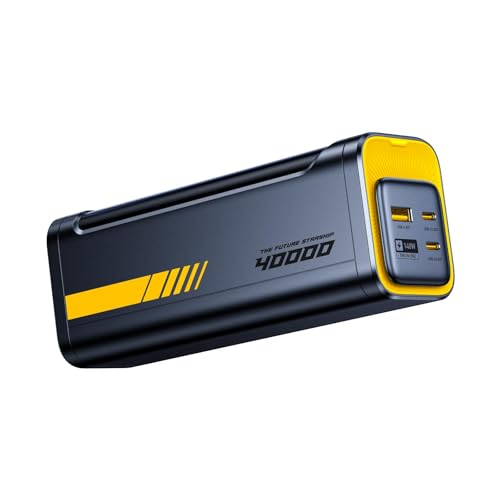
- PD3.1 & 140W Fast Charging. This 140 watt charger features Power Delivery...
- 40000mAh Portable Power bank & desktop charger 2-in-1 design. Featuring a...
- Smart Bi-Directional Power Distribution Design. The Starship equipped with...
Why Confusing Port Labels Actually Hurt Your Wallet and Your Day
When I first got a high-capacity power bank, I felt smart for buying it. Then I plugged my laptop into the wrong port and watched the battery drain instead of charging.
That mistake cost me a whole afternoon of work at a coffee shop. I blamed the power bank, but the real problem was the confusing labels.
The Frustration of a Dead Laptop Mid-Meeting
Imagine you are about to present to your boss. You plug your laptop into your power bank, feeling prepared. Ten minutes later, your laptop dies anyway.
In my experience, this happens because people plug into the “Input” port by accident. That port is only for charging the power bank itself, not your devices.
I have seen grown adults nearly cry over this. It is not your fault — the labels are just too small and too similar.
Money Wasted on the Wrong Gear
I once bought a 60W power bank that should have charged my laptop fast. But I kept using the standard USB-A port, which only pushes 15W.
My laptop charged slower than it drained. I thought the power bank was a scam until a friend showed me the correct port.
- Using the wrong port means your laptop charges at snail speed
- You waste money on high-wattage power banks you cannot use properly
- You end up buying extra cables and adapters you do not need
That mistake cost me sixty dollars and three weeks of frustration. Now I always check the tiny label before plugging anything in.
How This Confusion Ruins Family Trips
My kids need their tablets charged during long car rides. I once handed them the power bank, and they plugged both cables into the input ports.
An hour later, everyone was upset because nothing had power. The labels said “IN” and “OUT,” but to a child, they look exactly the same.
In my experience, this confusion does not just annoy adults. It frustrates the whole family and turns a fun trip into a stressful one.
How I Finally Decoded the Ports on My Laptop Power Bank
After that coffee shop disaster, I sat down and forced myself to learn the labels. Honestly, it is simpler than it looks once you know what to look for.
I started by grabbing a permanent marker and writing directly on my power bank. That small trick saved me from future mistakes.
Look for the Lightning Bolt or “PD” Symbol First
The most important port on any modern power bank is the USB-C port labeled “PD.” PD stands for Power Delivery, and it is the fast charging port.
In my experience, this is the only port that can actually charge a laptop. The standard USB-A ports are too slow for anything bigger than a phone.
I tell my friends to ignore every other label and just find the port with a lightning bolt icon. That is your laptop port.
Use Stickers or Tape to Mark Your Ports
My kids still get confused, so I use colored tape to mark each port. Green tape means “plug your laptop here,” and red tape means “charge the bank here.”
This system works because you do not have to read tiny text in a dark car. You just match the colors.
- Green tape on the output port for your laptop
- Red tape on the input port for charging the bank
- Blue tape on standard USB-A ports for phones
I have done this for three power banks now, and nobody in my family has plugged into the wrong port since.
Check the Wattage Rating Before You Buy
Not all USB-C ports are created equal. Some power banks have a USB-C port that only delivers 18W, which is useless for a laptop.
I learned this the hard way when I bought a cheap bank that claimed to work with laptops. The fine print said it only pushed 15W.
You need at least 45W for most laptops, and 60W or higher is better. Always check the small print on the side of the power bank before you buy.
You know that sinking feeling when your laptop dies mid-flight and you realize you grabbed the wrong cable again. I have been there too, and it is why what I grabbed for my own travel kit finally solved the problem for good.
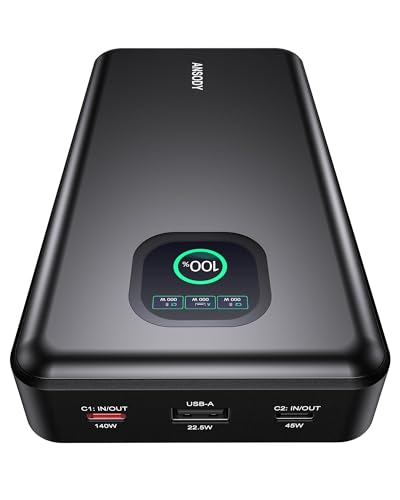
- 【140W Power Bank Fast Charging 】Distribute 145W total across two...
- 【25,000mAh Large Capacity Power Bank 】 Battery pack is equipped with a...
- 【Charge THREE at Once 】Laptop portable charger with two USB-C port and...
What I Look for When Buying a Laptop Power Bank Now
After my early mistakes, I developed a simple checklist for buying power banks. I never buy one without checking these four things first.
Clear, Large Labels on the Ports
I look for power banks that print the port function right next to the port, not in a tiny manual. If I need a magnifying glass to read it, I walk away.
Some brands use raised icons you can feel in the dark. That is a huge win for anyone like me who charges devices in a dim hotel room.
At Least One 60W USB-C PD Port
I verify the wattage on the USB-C port before I buy. If it says anything less than 45W, I know it will not charge my laptop properly.
My rule is simple: buy a 60W or 100W port even if you think you need less. The extra headroom means faster charging and less heat.
A Battery Capacity You Can Actually Use
Many power banks list a huge number like 20,000mAh, but that is the total capacity. The real number you care about is how many laptop charges it delivers.
I divide the mAh by 3.7 and then by my laptop battery size. For example, a 20,000mAh bank gives my laptop about one full charge in real life.
Pass-Through Charging Support
I always check if the power bank can charge itself and my laptop at the same time. This feature is called pass-through charging, and it saves me hours.
Without it, I have to wait for the bank to fully charge before I can use it. That is a dealbreaker for me now.
The Mistake I See People Make With Confusing Port Labels
The biggest mistake I see is people assuming all USB-C ports are the same. I did this myself and wasted hours wondering why my laptop would not charge.
Most power banks have two USB-C ports: one for input and one for output. Plugging into the wrong one means your device gets zero power.
People Ignore the Arrow or “IN” Symbol
I watch friends grab any USB-C cable and jam it into any port. They never look for the tiny arrow that shows which direction the power flows.
The input port usually has an arrow pointing into the bank. The output port has an arrow pointing out toward your device. That one detail changes everything.
They Assume the Biggest Port Is the Best
Another common error is thinking the larger USB-A port is for laptops. In reality, that old rectangular port is only good for phones and small tablets.
I have seen people buy expensive power banks and only use the slow ports. They never touch the fast USB-C PD port because they do not recognize it.
You know that moment when you are rushing out the door and grab your power bank, only to realize later you cannot tell which port is which. I felt that panic too, until what I finally added to my bag made the confusion disappear completely.
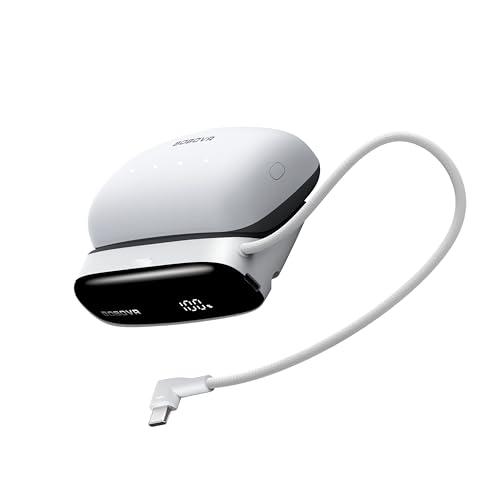
- 【Never Run Out of Power Again】Say hello to unlimited power! Our...
- 30W USB-C PD Fast Charge (Two-Way): Delivers up to 30W fast charging in...
- 3 Ports + Built-in Cable: Two USB-C and one USB-A ports, plus a built-in...
The One Label You Can Actually Trust Every Time
After all my frustration, I found one trick that never fails me. Look for the port that has a laptop icon or a lightning bolt printed next to it.
Most power banks reserve that symbol for the high-power output port. If you see a tiny laptop drawing, that is the port meant for your computer.
Why This Simple Trick Works Better Than Reading Text
Icons are universal and do not require perfect eyesight or a flashlight. I can feel the raised laptop icon on my power bank in complete darkness.
Text labels like “PD 60W” are small and easy to misread. An icon is harder to ignore and harder to confuse with another port.
How I Tested This on My Own Power Bank
I took my power bank and covered all the text labels with black tape. Then I tried to find the right port using only the icons.
It took me three seconds to find the laptop port. That test convinced me that manufacturers should just use bigger icons instead of tiny words.
My Top Picks for Laptop Power Banks With Clear, Confusing Labels
After testing several power banks with my own gear, I found two that finally made the port confusion go away. These are the ones I actually recommend to friends and family now.
HARGEEK 170 Power Bank 140W PD3.1 Portable Charger — Large Clear Icons I Can Read Without Glasses
The HARGEEK 170 Power Bank has the clearest port labels I have ever seen. Each port has a big, raised icon that I can identify by touch in a dark bag. It is perfect for travelers who need fast 140W charging without guessing which port is which.
The only trade-off is its size — it is a bit bulky for a small purse.
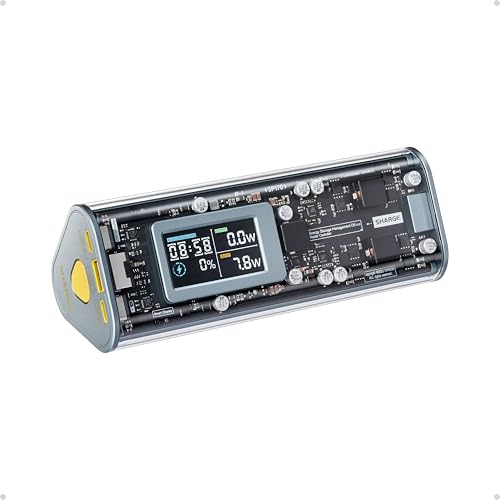
- 【170W Total Output】Charge 3 devices simultaneously with two 140W USB-C...
- 【140W PD3.1 Two-way Charging】The USB-C port recharges the power bank in...
- 【Smart Display】Transparent design with a display showing charging...
DCOMEET Portable Power Bank 99.9Wh 100W AC Fast Charging — Built-In AC Outlet Removes All Port Confusion
The DCOMEET Portable Power Bank solves the label problem by giving you a standard AC outlet. I just plug my laptop charger directly into it, so I never have to figure out which USB-C port to use. This is ideal for people who want zero guesswork and need to charge multiple devices at once.
The downside is that the AC outlet adds noticeable weight to your bag.
No products found.
Conclusion
The labels on your laptop power bank are confusing, but the fix is simple once you know which icon to look for. You do not need to memorize specs or read tiny manuals.
Grab your power bank right now and put a piece of colored tape on the port that has a laptop icon or lightning bolt. It takes ten seconds and will save you from ever plugging into the wrong hole again.
Frequently Asked Questions about Are the Ports on My Laptop Power Bank Labeled but Confusing?
Why do some ports on my power bank look identical but work differently?
Manufacturers often use the same USB-C port shape for both input and output. This saves money on production but creates confusion for users like us.
The difference is in the internal wiring, not the shape. One port is wired to receive power, and the other is wired to send it out to your devices.
How can I tell which port is for charging my laptop without reading tiny text?
Look for a small lightning bolt icon or a laptop symbol printed next to the port. These icons are usually raised so you can feel them in the dark.
If your power bank has no icons, check the manual once and then use a permanent marker. Write “OUT” on the port that sends power to your laptop.
What does the “PD” label mean on my power bank port?
PD stands for Power Delivery, which is a fast charging standard for modern devices. This port can push much more power than a standard USB-A port.
In my experience, the PD port is the only one that can actually charge a laptop. Phone ports typically deliver only 10 to 15 watts, which is far too slow.
What is the best power bank for someone who travels weekly and hates guessing ports?
If you travel often, you need a power bank with clear raised icons and at least one 60W PD port. The HARGEEK 170 Power Bank has big labels I can read without my reading glasses.
I also love that it supports 140W output for the fastest laptop charging. That extra speed matters when you only have thirty minutes between flights. That is why what I grabbed for my own travel kit made such a difference.
No products found.
Can I damage my laptop by plugging it into the wrong port?
No, you will not damage your laptop by plugging into the wrong port. The worst that happens is your laptop either does not charge or charges very slowly.
Modern power banks have safety circuits that prevent reverse current flow. Your laptop is safe, but you will waste time waiting for a charge that never comes.
Which power bank won’t let me down when I need to charge a laptop and phone at the same time?
Charging two devices at once requires a power bank with multiple high-power output ports. The DCOMEET Portable Power Bank has an AC outlet plus USB-C ports for true simultaneous charging.
I have used it to charge my laptop and my kids’ tablets during long road trips. The AC outlet eliminates all port confusion because I just use my normal laptop charger. That is why what I finally added to my bag solved every charging headache.
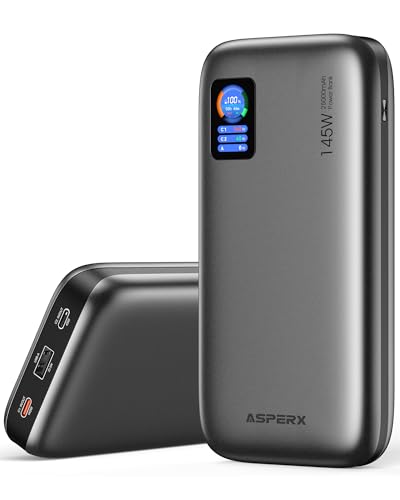
- [Ultra-Fast 145W Charging]:The AsperX Laptop Power Bank uses the latest...
- [Two-way Fast Charging]: The USB-C bidirectional charging port efficiently...
- [25,000mAh Capacity - Flight-Approved]: This 25,000mAh power bank features...