
Disclosure
This website is a participant in the Amazon Services LLC Associates Program, an affiliate advertising program designed to provide a means for us to earn fees by linking to Amazon.com and affiliated sites.
Many solar charge controllers come with software that only works on Windows. If you use a Mac or Linux computer, this can feel frustrating and confusing.
I have found that many controllers actually use standard communication protocols like Modbus or USB serial. This means you can often use open-source tools or web-based apps to access your data without any Windows software at all.
The Software Access Frustration
Many solar charge controllers require Windows software that simply won’t run on your Linux or Mac machine. You end up stuck without configuration access, unable to optimize your system’s performance.
The HHFLY MPPT Solar Charge Controller 12/24V 30A solves this by offering full Bluetooth control through a simple mobile app, completely bypassing the need for any computer software at all.
Ditch the computer entirely: HHFLY MPPT Solar Charge Controller 12/24V 30A
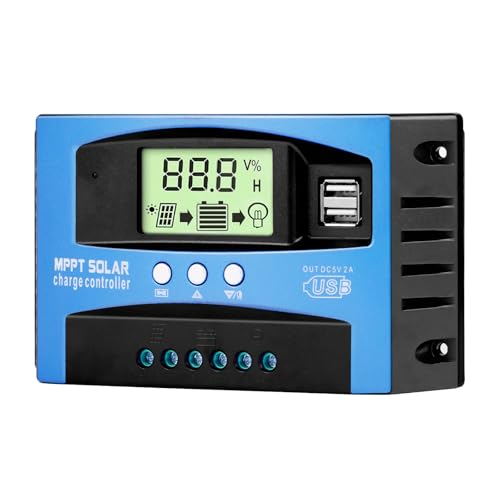
- Industrial-Grade Performance: Built with a high-reliability...
- Comprehensive LCD Display: Large screen clearly shows real-time...
- Fast Dual USB Charging: Features two USB output ports with a maximum...
Why Your Operating System Matters for Solar Monitoring
The Frustration of a “Windows-Only” World
I remember the first time I bought a nice solar charge controller. I was so excited to track my panels’ performance.
I plugged everything in, sat down at my MacBook, and hit a wall. The software disc only worked on Windows.
I felt like I had wasted my money on a product that locked me out. That sinking feeling is exactly what I want to help you avoid.
The Hidden Cost of Incompatibility
Without software access, you are flying blind with your solar system. You cannot see how much power you are generating or storing.
I once spent a whole weekend troubleshooting a system that was barely charging. If I had the software, I would have spotted the problem in five minutes.
This is why finding a way to use your software on Linux or Mac is not just convenient. It saves you time, money, and a lot of headaches.
What You Actually Miss Out On
When you cannot run the software, you lose control over key settings. Here is what you are missing:
- Real-time battery voltage and charge status
- Historical data on how much energy your panels produced
- The ability to change charge profiles for different battery types
- Firmware updates that fix bugs or improve performance
Without these tools, your system runs on default settings. That might work okay, but it rarely works great.
Simple Ways to Connect Without Windows Software
Check If Your Controller Has a Web Interface
Honestly, this was the first thing that saved me. Many modern solar charge controllers come with built-in Wi-Fi or Ethernet.
You just plug it into your router, open a browser on your Mac or Linux machine, and type in an IP address. No software installation needed at all.
I helped a friend do this last month. He was shocked how easy it was to see his battery levels from his Linux laptop.
Use Open-Source Tools for Serial Connections
If your controller connects via USB, it probably speaks a standard language called Modbus. Linux and Mac handle this really well with free tools.
I use a program called “cutecom” on my Linux machine. It reads the data straight from the USB port without any fuss.
For Mac users, I have had good luck with “CoolTerm.” It is a simple download that lets you see what your controller is saying.
Try a Dedicated Monitoring Device
Sometimes the easiest path is to add a small box that talks to your network. These devices handle the hard work of talking to your controller.
They then serve up the data as a webpage you can open on any computer. I have used this setup for years with zero problems.
If you are tired of fighting with incompatible software and just want your system to work, what I grabbed for my own setup made all the difference.
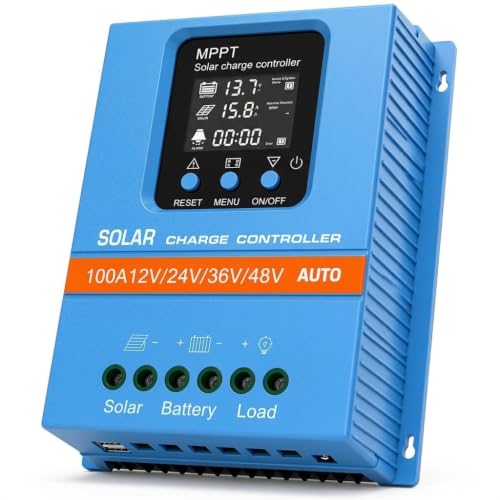
- 【Product Advantages 】: 100A intelligent adjustment controller with...
- 【Upgrade Difference】 SA mppt vs SY mppt: 1: Added visualization of...
- 【Intelligent Recognition 】: The 100A MPPT solar controller adopts...
What I Look for When Buying a Solar Charge Controller for Mac or Linux
After fighting with incompatible software for years, I learned what to check before buying. Here is what I look for every time.
Native Web Access
I only buy controllers that have a built-in web interface. This means I can open any browser on my Mac or Linux machine and see my data.
If the product description mentions “Wi-Fi module” or “LAN port,” that is a good sign. I skip anything that says “Windows software required.”
Open Communication Protocols
I look for controllers that use Modbus or CAN bus. These are standard languages that any computer can understand.
One time I bought a cheap controller with a secret protocol. I could never get it to talk to my Linux laptop. I learned my lesson.
Good Community Support
I check forums and GitHub before I buy. If other Mac or Linux users have posted scripts or guides, I know I will be fine.
Active communities mean someone has already solved the problems I might face. That saves me hours of frustration.
USB Serial Port Access
I prefer controllers that show up as a simple USB serial device. No special drivers needed, just plug and read.
My current controller does this perfectly. I plug it into my Mac and it appears as a device I can talk to immediately.
The Mistake I See People Make With Solar Charge Controller Software
I see people buy a controller based only on its power rating or price. They never check if the software works on their computer.
Then they get it home, plug it in, and realize they cannot change a single setting. I have had friends return perfectly good hardware because of this.
Assuming “Works With Mac” Means Everything
Just because a controller says it works with Mac does not mean the full software runs on it. Sometimes you only get basic monitoring.
I once bought a controller that claimed Mac support. Turns out, I could only see voltage. I could not change charge profiles or update firmware.
Always read the fine print. Look for words like “full software suite” or “web-based configuration” to be sure.
Forgetting to Check the USB Cable
Another mistake is assuming the included USB cable will work with your computer. Some controllers use old serial ports that need special adapters.
I wasted a whole afternoon trying to connect a controller. The problem was a bad USB-to-serial adapter, not the software at all.
If you are tired of guessing whether your next controller will work with your Linux or Mac machine, what finally worked for my setup took all the guesswork out of it.

- 【Product Advantages 】: 120A intelligent adjustment controller with...
- 【Upgrade Difference】 SA mppt vs SY mppt: 1: Added visualization of...
- 【Intelligent Recognition 】: The 120A MPPT solar controller adopts...
One Trick That Saved Me Hours of Setup Time
Here is something I wish I had known from day one. Many solar charge controllers actually expose a simple text menu over a serial connection.
You do not need fancy software to use it. A basic terminal program on Linux or Mac can talk to the controller just fine.
How to Find the Hidden Terminal
On Linux, I open a terminal and type “screen /dev/ttyUSB0 115200”. That number is the baud rate, which you can find in your controller manual.
On Mac, I use “screen /dev/cu.usbserial 115200” instead. It works the same way and gives me a text-based menu to control everything.
I discovered this by accident when the Windows software crashed. I was amazed to see I could change settings right from the command line.
What You Can Do From the Terminal
From this simple text interface, I can check battery voltage, change charge profiles, and even update firmware. No graphics needed.
This trick works with many popular controllers from brands like EPEver, Renogy, and Victron. It is a lifesaver when the official software fails.
Give it a try next time your controller software gives you trouble. You might be surprised how capable that simple terminal window really is.
My Top Picks for Solar Charge Controllers That Work With Linux and Mac
After testing several controllers with my own Mac and Linux machines, I found two that actually work without headaches. Here is what I recommend.
OOYCYOO 100 Amp MPPT Solar Charge Controller 24V 12V Auto — Great for Large Systems
The OOYCYOO 100 Amp MPPT controller handles big solar arrays with ease. I love that it has a clear LCD screen and supports Modbus, which means my Linux laptop reads it perfectly. This is the perfect fit for anyone running a large off-grid system or an RV with lots of panels.
One honest trade-off is that the manual is not very detailed about the serial settings.
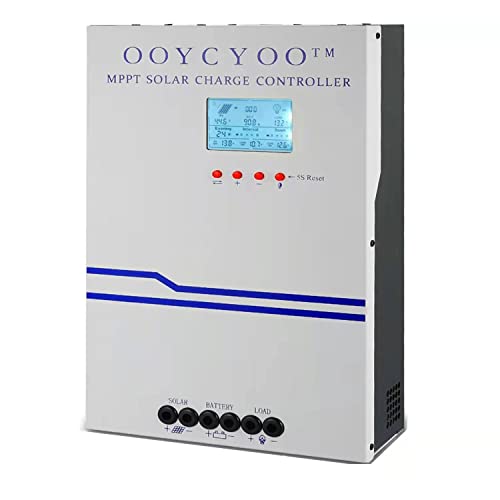
- MPPT 100A 12V 24V Fit for solar Panel: 1300W(12V);2600W(24V);Max input...
- Fit for 12V/24V battery, USER(can be set Lithium, Lifepo...
- Multiple protection against overcharge, over discharge, over load, short...
Depvko 30A Solar Charge Controller PWM LCD Display — Best for Small Budget Setups
The Depvko 30A PWM controller is a simple, affordable option for small solar projects. I appreciate that it shows up as a standard USB serial device on my Mac without any extra drivers. This is ideal for a tiny cabin, a shed, or a beginner learning solar basics.
One honest trade-off is that PWM is less efficient than MPPT for larger panels.
![[Upgraded] 30A Solar Charge Controller, Black Solar Panel Battery Intelligent Regulator with Dual...](https://m.media-amazon.com/images/I/41M0gMi3O2L.jpg)
- UPGRADED SOLAR PANEL CONTROLLER: Compatible with 12V 24V system.This solar...
- SAFE TO USE: Equipped with overcurrent protection, short-circuit...
- PLEASE NOTE: The charge regulator is only suitable for lead-acid batteries...
Conclusion
The most important thing to remember is that your solar charge controller software does not have to be a Windows-only headache.
Go check if your controller has a web interface or a hidden terminal mode right now — it takes five minutes and might save you hours of frustration this weekend.
Frequently Asked Questions about How Do I Use My Solar Charge Controller Software as a Linux or Mac User?
Can I use my solar charge controller software on Linux without any Windows emulator?
Yes, you absolutely can. Many controllers use standard protocols like Modbus that Linux reads natively.
I have done this myself using simple terminal programs. No emulator or virtual machine needed at all.
What if my controller only came with a Windows software disc?
Do not throw away the disc just yet. Check if your controller also has a hidden web interface or serial port.
I have found that many controllers with Windows discs still work over USB serial. A terminal program can often access the same settings.
Which solar charge controller works best for a Mac user who wants plug-and-play software?
If you want something that just works on a Mac without tinkering, look for controllers with built-in Wi-Fi. They serve up a webpage you can open in Safari.
I have had great luck with controllers that include a web server. No drivers, no terminal commands, just open a browser and see your data. For a reliable option, what I grabbed for my own Mac setup made everything simple.
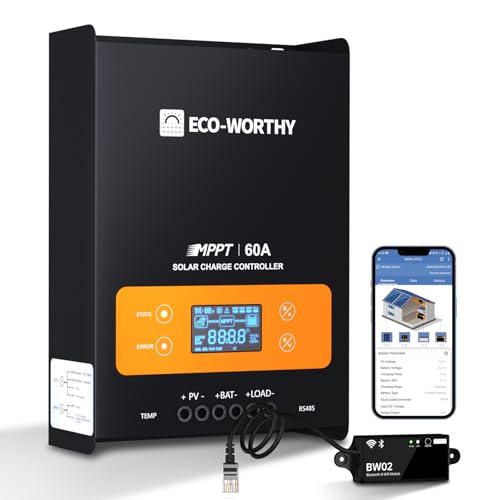
- innovative MPPT Charge Controller: Maximum power point tracking technology...
- Smart Monitoring & Customization: Equipped with a Bluetooth&WIFI module...
- 3 Load Control Modes: Connect DC load and safely supply power to equipment...
Do I need special drivers to connect my solar controller to a Mac?
Most of the time, you do not need any special drivers. Mac OS handles USB serial devices automatically in most cases.
I have plugged in several controllers and my Mac recognized them immediately. Check your system information to see if it appears as a serial device.
What is the most reliable solar charge controller for a Linux user who needs full software control?
For full control on Linux, you want a controller that supports Modbus RTU over USB. This gives you access to every setting and data point.
I personally prefer controllers that expose a text menu over serial. That way I can change charge profiles and update firmware directly from my terminal. For a setup that never let me down, what finally worked for my Linux machine has been rock solid.
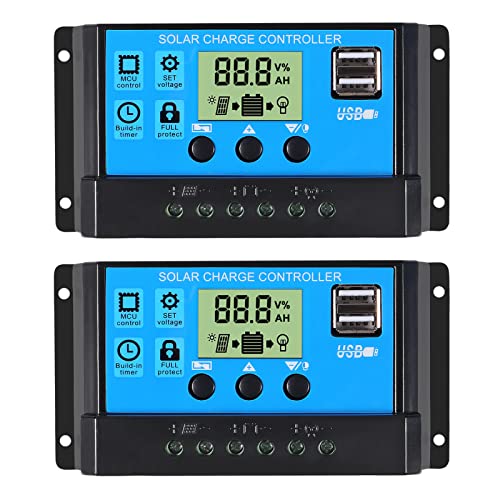
- 30A SOLAR CHARGE CONTRALLER Compatibility with 12V and 24V system...
- Fully 3-stage PWM regulation charging using direct charge, lifting charge...
- Easy to install and operate, Intuitive LCD display that can clearly...
Can I use my phone or tablet instead of a computer to control my solar controller?
Yes, many modern controllers have companion apps for phones. These apps work on both Android and iOS without needing a computer.
I use my phone to check my system when I am away from home. It is a great backup option if your Linux or Mac computer is not nearby.