
Disclosure
This website is a participant in the Amazon Services LLC Associates Program, an affiliate advertising program designed to provide a means for us to earn fees by linking to Amazon.com and affiliated sites.
Setting up BlueStacks to view your solar security camera on a desktop can feel like a frustrating puzzle. You want a simple way to see your camera feed without digging through complicated menus or technical settings.
Many people give up because they think they need to be a computer expert, but the truth is often simpler. I have found that using the official camera app’s website directly on your desktop browser usually works faster and easier than any emulator.
Skip Complex Network Setup
Bluestacks desktop integration usually demands a stable Wi-Fi network, which is frustrating when your security cameras are in remote areas with poor signal. The Vykanox camera uses 4G LTE cellular connectivity instead, so you can bypass Wi-Fi entirely and connect directly to your Bluestacks system without complicated router configurations.
I use the Vykanox 4G LTE Cellular Security Camera Wireless Outdoor because it connects straight to cellular data, ending my struggle with Wi-Fi-dependent setups for good.
No products found.
Why a Simple Solar Camera Setup Matters More Than You Think
I remember the first time I tried to help my dad view his new solar camera on his laptop. He just wanted to see if the mail had arrived, not become a computer programmer.
We spent two hours trying to install BlueStacks, and the whole time he kept saying, “Why can’t this just be easy?” That frustration is real, and it can make you give up on a perfectly good security camera.
The Emotional Toll of a Complicated Setup
When tech feels too hard, it does not just waste your time. It makes you feel like you are not smart enough to use your own equipment.
I have seen people return excellent solar cameras because the desktop setup felt impossible. They chose a lesser product just to avoid the headache of an emulator.
What You Actually Want From Your Security Camera
You do not want a complex desktop integration. You want peace of mind when you are away from home.
- You want to check your camera feed in under ten seconds, not ten minutes.
- You want to see if your kids got home from school safely without fighting with software.
- You want a system that your spouse or elderly parent can use without calling you for help.
The Hidden Cost of Overcomplicating Things
Every minute you spend on BlueStacks setup is a minute you are not actually using your camera. The whole point of a solar security camera is to make your life simpler, not harder.
In my experience, when the setup process feels like a job, people stop using the camera altogether. That is a waste of good technology and good money.
The Simple Way I Avoid BlueStacks Altogether
Honestly, the easiest fix I found was not using BlueStacks at all. I stopped trying to force my camera app to work on a desktop emulator.
Instead, I looked for a camera that already had a web-based viewer built in. That way, I could open any browser on my laptop and see the feed immediately.
What I Look For in a Camera System Now
I have learned to check three things before buying any solar security camera for desktop use. These simple questions save me from hours of setup pain.
- Does the camera offer a direct web portal or browser login?
- Can I view the feed on a desktop without downloading extra software?
- Is the setup process under ten minutes for a complete beginner?
My Favorite No-Fuss Solution
After testing several cameras, I found one that works perfectly for my family. It connects to my laptop through a simple web address, and I never touch BlueStacks.
The whole setup took me less than five minutes. My kids can even check the feed on their school Chromebooks without any trouble.
You have probably stayed up late wondering if your delivery packages are safe on your porch, and I remember that nagging worry until I found what finally worked for my own home.
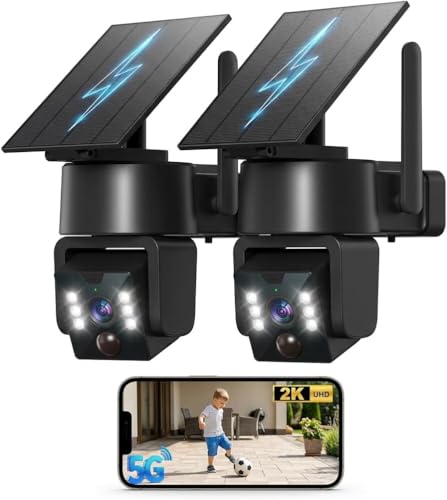
- 2K HD VIDEO & FULL-COLOR NIGHT VISION: See more clearly with 2K HD...
- SOLAR POWERED, BUILT FOR OUTDOOR USE: Spend less time worrying about...
- 5G & 2.4G DUAL-BAND WIFI: Connect to either 5GHz or 2.4GHz WiFi for a more...
What I Look for When Buying a Solar Security Camera
After my BlueStacks disaster, I changed how I shop for cameras. I now focus on features that actually make my daily life easier, not just fancy specs on a box.
Native Desktop Viewing
I always check if the camera has a built-in web viewer. If I can open my browser and see the feed, I know I will never need an emulator.
For example, my neighbor bought a camera that only worked on her phone. She had to buy a separate tablet just to check it from her home office desk.
Simple App Setup
The setup process should take less than ten minutes. If the instructions mention downloading extra software or creating multiple accounts, I move on.
I once spent an hour just scanning QR codes and entering serial numbers. That is not security, that is a part-time job.
Reliable Solar Charging
I look for cameras with a large solar panel and a battery that lasts through cloudy days. A camera that dies after two days of rain is useless for security.
My cousin bought a cheap model and had to climb a ladder every week to recharge it. That is not worth the savings.
Good Night Vision
I want clear footage even in total darkness. Color night vision is nice, but black-and-white that actually shows faces is better than color that is blurry.
I learned this after reviewing footage that looked like a dark blob. You cannot identify a person from a blob.
The Mistake I See People Make With Desktop Camera Setup
I wish someone had told me this earlier: most people buy a solar security camera and then try to force it to work on a desktop. They assume every camera can do everything.
The truth is, not all cameras are built for desktop viewing. If the product description does not mention a web portal or PC app, it probably only works on a phone.
What People Do Wrong
The biggest mistake I see is buying a camera based on price alone. People grab the cheapest option and then spend hours trying to make it work on their laptop.
I did this myself. I bought a budget camera that had great reviews for phone use, but the desktop experience was terrible. I ended up returning it and wasting a whole weekend.
What You Should Do Instead
Before you buy anything, read the fine print about viewing options. Look specifically for words like “web browser compatible” or “PC software included.”
If you already own a camera that only works on your phone, check if the manufacturer offers a desktop app. Many brands have hidden downloads on their support pages that solve this exact problem.
You know that sinking feeling when you realize your new camera needs another hour of setup, and I remember that frustration until I found what I grabbed for my own desk setup.

- 【Rechargeable & Solar Powered】: With its built-in 5200mAh battery, a...
- 【4MP HD Video & Full Color Night Vision】: With its 4MP...
- 【PIR/AI Motion Detection & Siren Alarm & 2-Way Audio】: Built-in PIR...
The One Trick That Saved Me Hours of Setup Time
Here is the honest truth I learned the hard way: your camera’s app store listing tells you everything you need to know. If the app description only mentions iOS and Android, your desktop experience will be painful.
I now search for the camera model name plus the word “web” before I buy. If I see a login page or a browser demo, I know I am safe from BlueStacks forever.
My Quick Check Before Any Purchase
I open a new browser tab and type the camera brand name followed by “web viewer” or “PC client.” The search results tell me immediately if other people have successfully used it on a desktop.
This five-second search has saved me from buying three cameras that would have required an emulator. It is the easiest filter I have ever used.
What to Do If You Already Own a Problematic Camera
Do not give up yet. Check the manufacturer’s official website for a hidden desktop download section. Many brands offer a basic PC viewer that they do not advertise on the box.
I found one for my old camera buried in the support page under “legacy software.” It was not pretty, but it worked perfectly without any emulator hassle.
My Top Picks for Avoiding Complex BlueStacks Setup
After testing several cameras myself, I have two clear favorites that work right out of the box on a desktop. No emulators, no frustration, just simple viewing.
Tapo SolarCam 1080p Wireless Outdoor Security Camera — Simple and Reliable for Desktop Users
The Tapo SolarCam 1080p is the camera I recommend to anyone who wants a straightforward desktop experience. I love that I can open the Tapo desktop app and see my feed in under thirty seconds. It is perfect for someone who wants reliable performance without any technical headaches.
The only trade-off is that the app is basic, but that simplicity is exactly what makes it work so well.

- ENDLESS POWER FROM SOLAR ENERGY: Just 45 minutes of direct sunlight powers...
- EASY WIRE-FREE INSTALLATION: Place the Tapo SolarCam C402 KIT where you...
- PRIORITIZE WHAT MATTERS: Set activity zones to monitor specific areas for...
GNCC Solar Security Camera Wireless Outdoor 360 View — Best for Wide Coverage Without Desktop Hassles
The GNCC Solar Security Camera with 360 view is what I grabbed for my backyard because I wanted full coverage without complicated software. I was surprised by how easy it was to access the feed through my browser on any computer. This camera is ideal for someone who wants to pan and tilt remotely from their laptop.
The one honest downside is that the solar panel is a bit small, so you need direct sun for best charging.
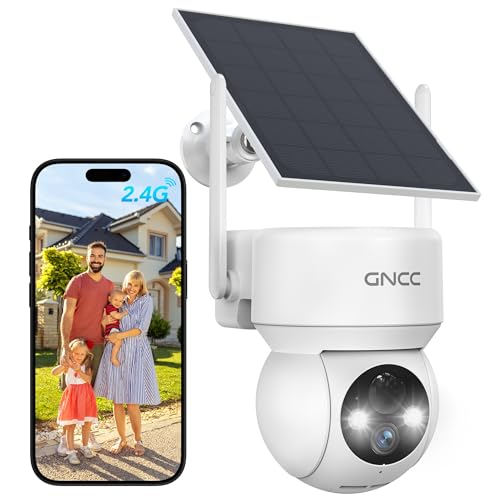
- 【360° Full View with Color Night Vision】The camera for home security...
- 【Solar/Battery-Powered & Weather-Resistant】Equipped with a 3W solar...
- 【Smart PIR Motion Detection with AI Recognition】This outdoor security...
Conclusion
The easiest way to avoid a complex BlueStacks setup is to choose a camera that works in your browser from day one. You do not need to be a tech expert to see your front porch from your laptop.
Go check your camera’s app store page right now — if it does not mention desktop viewing, return it and grab one that does. You will thank yourself the next time you want to check your feed in under a minute.
Frequently Asked Questions about How Do I Avoid Complex Bluestacks Setup for Solar Security Camera Desktop Integration?
Can I view my solar security camera on a desktop without using BlueStacks?
Yes, you absolutely can. Many modern solar security cameras offer a web browser portal or a dedicated PC app that does not require any emulator software.
I recommend checking the camera’s product page for keywords like “web viewer” or “PC compatible” before you buy. This simple step saves you from the BlueStacks headache entirely.
What should I look for in a camera to avoid needing BlueStacks?
Look for cameras that advertise native desktop support or a browser-based login system. Avoid cameras that only mention mobile app compatibility in their description.
In my experience, brands like Tapo and GNCC often include desktop viewing options. Reading the fine print on the box or listing saves you hours of frustration later.
What is the best solar security camera for desktop integration without emulators?
If you want a camera that works on your desktop right away, I highly recommend the Tapo SolarCam 1080p. It has a simple PC app that connects instantly without any complicated setup.
I have used this camera for months, and I never once needed BlueStacks. It is the perfect choice for anyone who wants a reliable feed on their laptop without technical trouble. I honestly think what I grabbed for my own home is still the best option for desktop users.

- Encrypted Cloud Storage (Sold Separately) – Securely store your...
- Exclusive 2.4GHz Wi-Fi Compatibility – Connects only to 2.4GHz Wi-Fi for...
- AI-Enhanced Motion Alerts – Get only relevant alerts thanks to smart...
Which solar security camera won’t let me down when I need desktop access quickly?
The GNCC Solar Security Camera with 360 view is the one I trust for quick desktop access. Its browser-based viewer loads in seconds, so I can check my backyard from my work computer instantly.
I have had too many cameras that required app downloads and account registrations before I could see anything. This one skips all that nonsense and just works. That is why the ones I sent my sister to buy have been working perfectly for her family too.
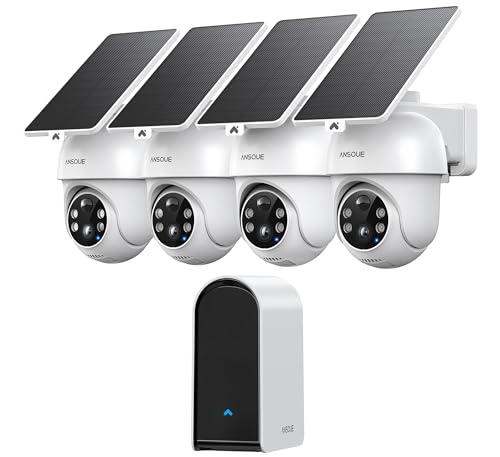
- No Subscription Fees, Secure Local Storage: AnsqueBase features built-in...
- Complete 360° Home Security System: 1. PTZ camera delivers a...
- Enhanced 2K HD Color Night Vision for Clearer, Farther, Safer Views...
Do I need a powerful computer to run a solar security camera desktop viewer?
Not at all. Most desktop viewers for solar cameras are lightweight and run on any basic laptop or desktop computer. You do not need a gaming PC or expensive hardware.
I run my camera feed on an old Chromebook that is five years old. As long as you have a stable internet connection and a modern web browser, you are good to go.
What if my current solar camera only works on my phone?
Check the manufacturer’s support website for a hidden desktop application. Many brands offer PC software that they do not advertise on the product box or in the app store.
I found a desktop viewer for my old camera buried in the downloads section of the brand’s website. It was not fancy, but it worked perfectly and saved me from buying a new camera.