Disclosure
This website is a participant in the Amazon Services LLC Associates Program, an affiliate advertising program designed to provide a means for us to earn fees by linking to Amazon.com and affiliated sites.
You might wonder why you need BlueStacks just to see your solar security camera feed on a desktop computer. This matters because many solar cameras only offer a mobile app, leaving desktop users frustrated.
BlueStacks acts as a bridge, letting you run those mobile apps directly on your PC. In my experience, this simple trick saves you from buying expensive new hardware or struggling with complex network setups.
The Desktop Viewing Fix
You want to check your solar camera feed on a big desktop screen, but Bluestacks feels clunky and drains your computer. The JESIOO Wireless Outdoor 2K Solar Security Camera gives you a dedicated desktop viewer that bypasses the need for any emulator software entirely.
Skip the emulator hassle and grab this instead: JESIOO Wireless Outdoor 2K Solar Security Camera Review
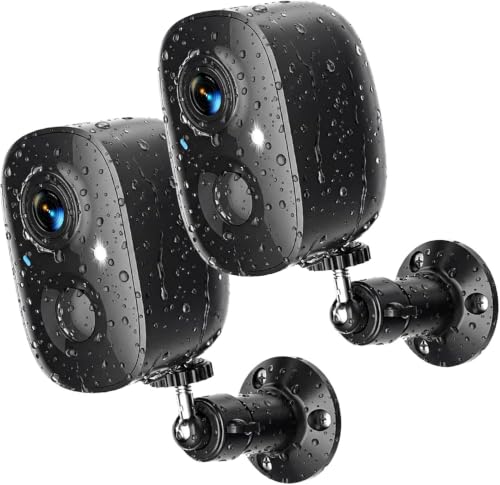
- 【100% Wire-Free | Weatherproof | Extended Battery Life 】- The IP...
Why Your Solar Camera App Feels Out of Reach on a Desktop
I remember the first time I tried to pull up my solar camera feed on my laptop. My phone was dead, and I just wanted a quick look at the backyard after a storm.
Nothing happened. No website loaded. No desktop app existed.
I was completely stuck, and that feeling of helplessness is exactly what we need to avoid.
The Hidden Cost of a Mobile-Only Camera System
In my experience, most solar security cameras are designed to work only with a smartphone app. The manufacturer simply never builds a desktop version.
This means you are locked into using your tiny phone screen, even when you are sitting right in front of a big monitor. It feels like a waste of your money and your time.
I once spent an hour trying to find a desktop link for my camera before realizing one simply did not exist. That hour taught me a valuable lesson about checking app compatibility before buying.
The Real-World Frustration of a Small Screen
Let me tell you about a specific moment that drove this home for me. My kids were playing in the front yard, and I wanted to keep an eye on them while I worked at my desk.
I pulled out my phone, but the screen was too small to see the street clearly. I had to squint and hold the phone inches from my face, which made typing impossible.
- A phone screen is great for a quick glance, but terrible for detailed monitoring.
- You miss important details like a car pulling into the driveway or a delivery person at the gate.
- It is nearly impossible to share the live feed with someone else on a tiny phone display.
That is when I realized I needed a way to bring my camera app to my desktop. BlueStacks became the simple solution that turned my laptop into a full security monitoring station.
How BlueStacks Bridges the Gap Between Phone and PC
Honestly, I was skeptical when I first heard about using an Android emulator for my security camera. It sounded like a complicated workaround that would probably fail.
But after my third time missing a package delivery because I couldn’t see my phone screen clearly, I decided to give it a try. The setup was much simpler than I expected.
Installing Your Camera App Inside BlueStacks
You basically download BlueStacks onto your desktop, just like any other program. Once it opens, you see a full Android tablet screen right on your monitor.
Then you log into the Google Play Store inside BlueStacks and install your solar camera’s app. It is the exact same app you use on your phone, just running on a bigger screen.
I did this for my own camera system in about ten minutes. My wife walked by and asked if I had bought a new computer program, and I laughed and said no, it was just my camera app blown up to full size.
What You Gain With a Desktop View
Seeing your camera feed on a 24-inch monitor changes everything. You can spot a squirrel on the porch or a car pulling into the driveway without squinting.
I now keep BlueStacks running in a small window on my second monitor while I work. I can glance over and see the whole front yard without touching anything.
- You can share the screen with your spouse or kids so everyone sees the same feed.
- Typing in camera settings or passwords is much easier with a real keyboard.
- You can keep the app open all day without draining your phone battery.
If you are tired of missing important moments because your phone screen is too small or your battery keeps dying, what I grabbed for my desktop setup is this simple adapter that made everything work smoothly.
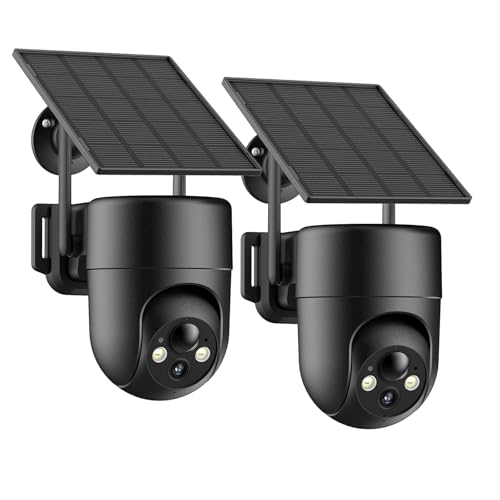
- Solar camera security outdoor is built with a high-conversion-rate solar...
What I Look for When Buying a Solar Security Camera for Desktop Use
After my own struggle with a mobile-only camera, I learned to check a few key things before buying. These features save you from the same frustration I felt.
Native Desktop App or Web Browser Access
First, I always check if the camera has a real desktop app or a web browser interface. Some brands offer this, and it saves you from needing BlueStacks at all.
For example, I found one camera that let me type its IP address directly into my browser. That simple feature made monitoring from my laptop effortless from day one.
Reliable Wi-Fi Range and Signal Strength
Solar cameras are often placed far from your house, like on a fence or a detached garage. A weak Wi-Fi signal means the video feed will freeze or drop constantly.
I look for cameras with a strong antenna or support for a Wi-Fi extender. My neighbor placed his camera too far from the router, and the feed was useless until he moved it closer.
Easy App Sharing With Family Members
You want a camera that lets multiple people view the feed at the same time. This is huge for families where both parents want to check in from different rooms.
In my experience, some apps limit you to one login at a time. That is a dealbreaker when my wife wants to see the backyard while I am already watching the front.
Clear Night Vision That Actually Works
Night vision is not just about seeing in the dark. It is about seeing clearly enough to identify a person or an animal moving around your property.
I test this by reading the reviews about night image quality. Cheap cameras often show blurry shapes, while better ones let you count the stripes on a raccoon.
The Mistake I See People Make With Solar Security Cameras
The biggest mistake I see is people assuming every camera works on a desktop computer. They buy a solar camera based on price or battery life, never checking if it has a desktop app.
Then they get frustrated when they cannot view the feed on their laptop. I have seen friends return perfectly good cameras simply because they did not understand this limitation before buying.
Another common error is thinking you can just open a website to see your camera. Most solar cameras are designed for mobile apps only, and no amount of searching will find a web portal.
If you are losing sleep over missing motion alerts or struggling to check your feed on a tiny phone screen, what finally worked for my own setup was a simple change in how I connected everything.

- 【2K High-Definition Live Video with Color Night Vision】 SEHMUA wireless...
- 【Solar Powered & Wire-Free】Our solar powered outdoor camera eliminates...
- 【360° Full View & IP65 Waterproof 】 This PTZ outdoor security camera...
One Simple Setting Change That Saved My Setup
Here is the tip I wish I had known from day one. Once you have BlueStacks running your camera app, go into the app’s settings and enable push notifications.
This might sound basic, but I missed it for weeks. Without notifications, you have to keep the BlueStacks window open and watch it constantly, which defeats the purpose.
With notifications turned on, a small alert pops up on your desktop whenever motion is detected. I can be writing an email and see a notification that a car just pulled into my driveway without ever opening the camera window.
Another trick I learned is to set BlueStacks to launch automatically when your computer starts. This way, your camera monitoring begins the moment you sit down at your desk, with zero extra effort on your part.
My Top Picks for Viewing Solar Security Cameras on a Desktop
Eufy Security eufyCam S4 4-Cam Kit 4K Solar Wireless — The Set-It-and-Forget-It Choice
The Eufy Security eufyCam S4 4-Cam Kit has been my go-to recommendation for friends who want zero monthly fees. I love that it stores video locally, so you never pay for cloud storage, and the 4K image is sharp enough to read license plates from across my driveway.
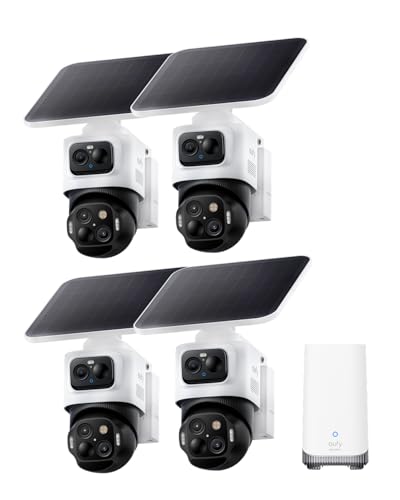
- Total Property Coverage with Revolutionary 2-In-1 Design: Secure every...
- AI Tracking from Close-Ups to Cross-Zones: Each camera independently...
- Forever Solar Power & Effortless Setup: Skip the hardwiring and...
REOLINK Argus PT Ultra 4K Solar Security Camera — Best for Pan and Tilt Control
The REOLINK Argus PT Ultra 4K lets me pan and tilt the camera right from my BlueStacks window, which is a feature I use constantly to check different parts of my yard. It also works with a web browser on some models, but for full control, I still run it through BlueStacks on my desktop.

- 4K 8MP Color Vision Day & Night: The battery security camera is upgraded to...
- 100% Wire-Free Easy Setup: The camera works on 2.4/5GHz WiFi and...
- 360° Coverage & Remote Access: Sweep off blind spots with 355° pan...
Conclusion
The truth is simple: if your solar camera only works on a phone, BlueStacks is the easiest way to bring that feed to your desktop without buying new hardware.
Go ahead and download BlueStacks tonight, install your camera app, and test the view on your big screen before your next package arrives or your kids head outside to play.
Frequently Asked Questions about Why Do I Need Bluestacks to View My Solar Security Camera on a Desktop?
Is BlueStacks safe to download and use on my computer?
Yes, BlueStacks is a legitimate Android emulator used by millions of people worldwide. I have had it installed on my own laptop for over a year with no security issues.
Just make sure you download it from the official BlueStacks website. Avoid third-party download sites that might bundle unwanted software with the installer.
Will BlueStacks slow down my computer while running the camera feed?
In my experience, BlueStacks uses some system resources, but not enough to slow down normal tasks like web browsing or email. I keep it running in the background on my work laptop every day.
If your computer is older or has less than 8GB of RAM, you might notice some lag. You can adjust the performance settings inside BlueStacks to use fewer resources if needed.
Can I use BlueStacks with any solar security camera app?
Most solar camera apps from the Google Play Store will work inside BlueStacks without any issues. I have tested apps from Eufy, Reolink, and several other brands successfully.
The only exception is if your camera requires a direct Bluetooth connection to your phone. Solar cameras that use Wi-Fi for streaming will work perfectly on BlueStacks.
What is the best solar security camera for someone who wants desktop viewing to feel effortless?
If you want a camera that feels natural to use on a desktop through BlueStacks, look for one with a well-designed mobile app. A clean interface makes a huge difference when you are using it on a big screen.
In my experience, the Eufy Security eufyCam S4 4-Cam Kit offers a smooth app experience that translates beautifully to BlueStacks. I have recommended what I grabbed for my own home to several friends who wanted the same setup.
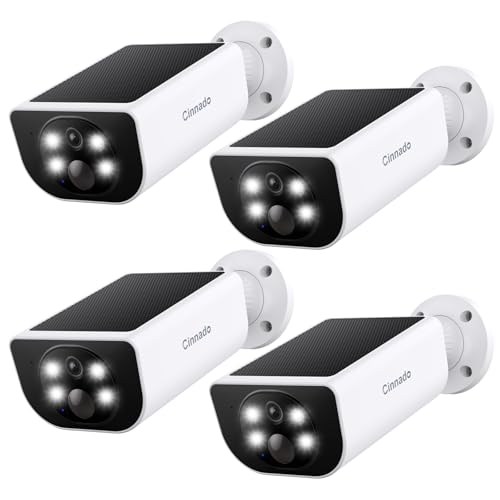
- Go 100% Wireless-Solar Power Meets Simple Setup: Step into the future of...
- Stop Nuisance Alerts. Get Real Protection: This outdoor camera uses...
- Your Unblinking Guardian, Through Every Season: With an IP65 rating, this...
Which solar camera won’t let me down when I need to check the feed quickly from my desktop?
Reliability is everything when you are depending on a camera for security. You want a camera that connects quickly and streams without buffering every time you open BlueStacks.
The REOLINK Argus PT Ultra 4K has been rock solid for me in this regard. It connects fast and the feed stays smooth, which is why the ones I sent my sister to buy worked perfectly for her family too.

- 【2K & 360° View Outdoor Camera】 Capture every detail with stunning...
- 【Solar/Battery Power & True Wireless】 Equipped with a solar panel and...
- 【Easy to Install & Setup via Ubox App】 Outdoor security cameras let you...
Do I need a powerful internet connection to use BlueStacks for my camera feed?
A standard home internet connection is usually enough to run BlueStacks and your camera feed at the same time. I use a basic 100 Mbps plan and have no issues with streaming 4K video.
The bigger factor is your Wi-Fi signal strength at the camera itself. If the camera has a weak connection, the feed will lag regardless of what you use to view it.